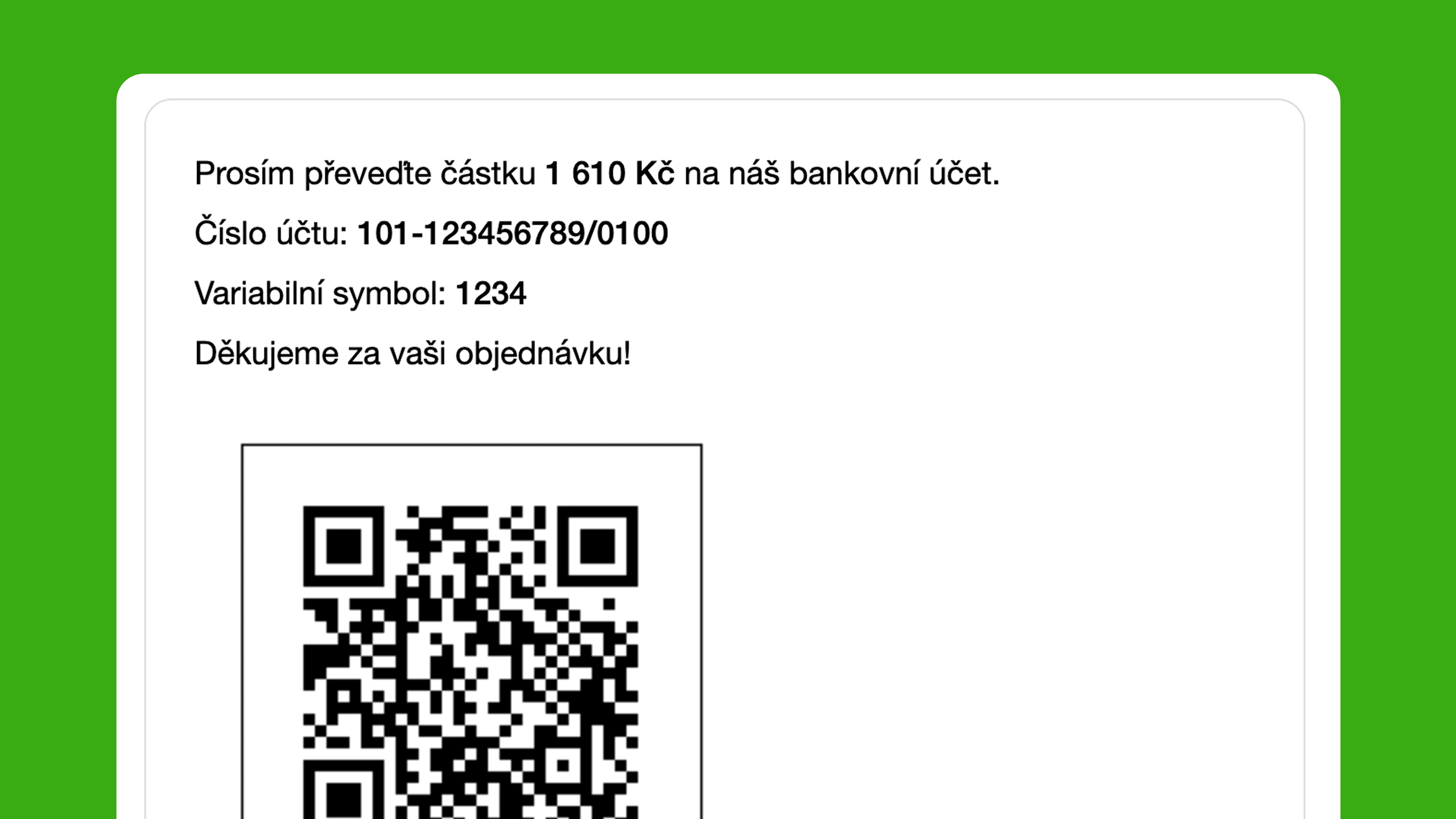
QR code payments remain popular in the Czech Republic and Slovakia. They let customers pay invoices without manually rewriting payment details. For merchants, this also reduces errors and increases the chance the order is paid immediately after it is created.
Note: QR payments via bank transfer are a standard primarily in the Czech and Slovak markets. This guide is intended for stores serving customers in the Czech Republic and Slovakia.
In our previous article we showed you how to add a QR code to the confirmation email. Now we'll look at adding a QR code to Shopify directly on the thank-you page after an order is completed. This guide is intended for stores that have already upgraded to the new thank-you and order-status pages (mandatory by August 2026, and by August 2025 for Shopify Plus).
Prepare the following details:
- For a CZK bank account: Your account number in the classic format
- For a EUR bank account: Your account number in IBAN format
Looking for a quick overview? See our QR code payments on Shopify page.
Procedure for adding a QR code in the Payflow app
The Payflow app makes it easy to customize shipping and payment for your store. Based on several possible conditions, you can hide, rename, or reorder various payment and shipping methods.
If you don't have the app in your store yet, simply install it from the Shopify App Store.
Create a new customization and choose the Payment instructions option.
A template loads, so all you need to do is choose whether you use a Czech or Slovak QR code and add your account number.
Likewise, choose which variable symbol you use; we recommend keeping the default setting and using the order number you see in the admin.
You can also define additional payment methods for which you want to display the QR code, e.g. if you don't use the default Bank Deposit (check under Settings > Payments in Shopify).
After saving the new customization, the app shows you a notice to add the app block on the thank-you page. Clicking it takes you to the editor, where you add the app block, and everything is set.
We recommend testing with a test order after activation and scanning the QR code with your bank's app to verify everything displays correctly.